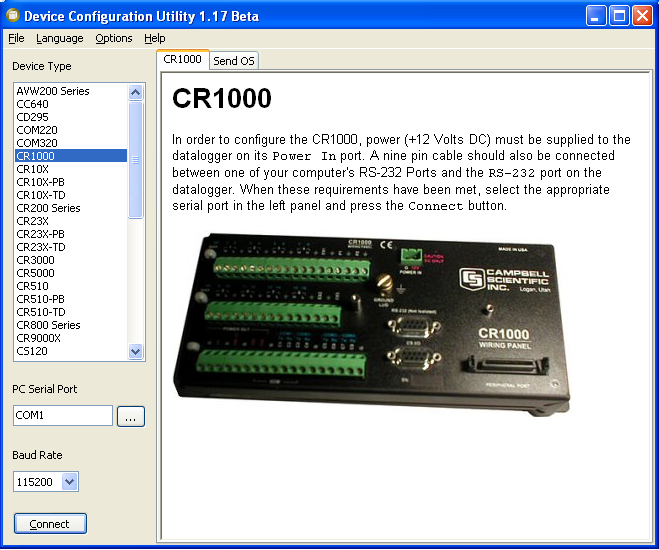
Device Configuration Utility (DevConfig) contains the ability to Retrieve (from logger), Save (to file), Read (from file) and Apply changes (to logger) the configuration settings of a wide range of Campbell Scientific data loggers, sensors and communications peripherals. This TechTip will focus on utilising these capabilities to ‘backup’ or even transfer (to another device) such settings.
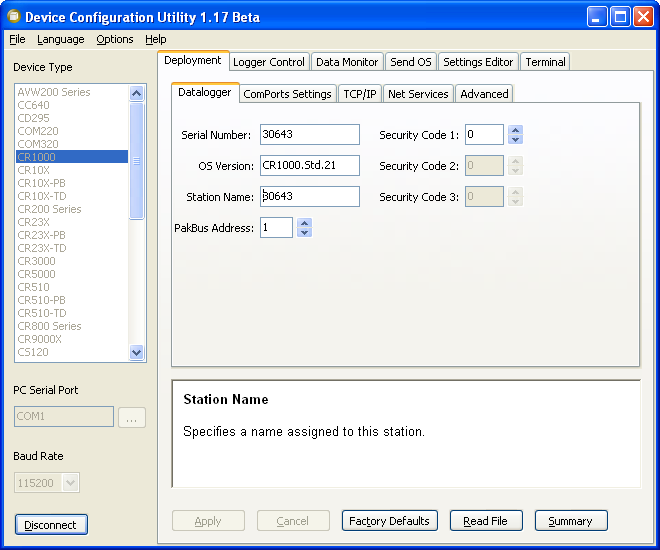
Retrieve Settings From Equipment:
To Retrieve the current configuration of a device, just connect to it using DevConfig. During the connection process, the settings are automatically retrieved from the device.
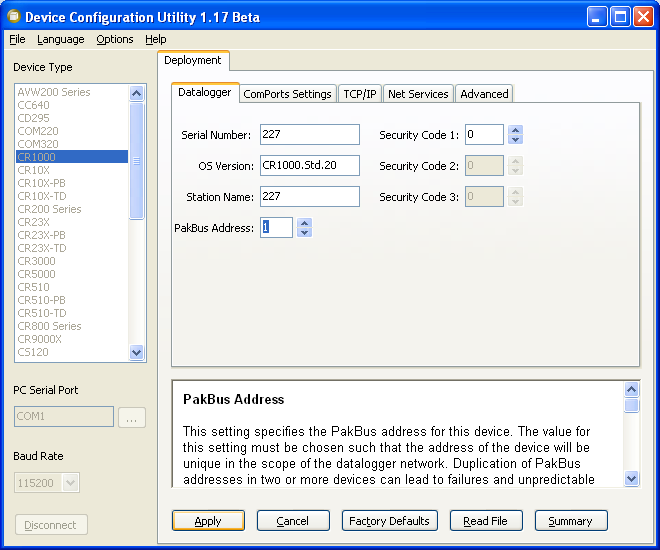
Apply Settings To Equipment:
Once you have connected to the device, any change to settings will enable the “Apply” Button. Clicking the Apply Button will send the currently displayed configuration to the device. NB: If you want to enable the apply button, but don’t want to change any settings in your device, then change a setting to a new value, then set it back to its old value.
Save Settings To File: 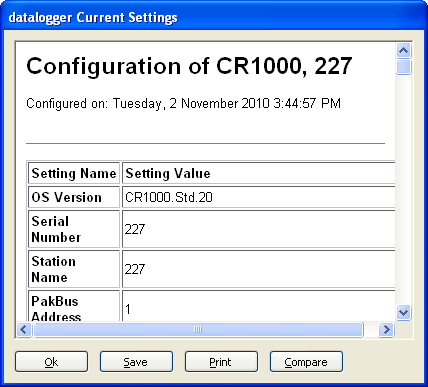
When you ‘Apply’ settings to a device, or click on the ‘Summary’ button, a dialogue box appears with the settings you have just sent to the logger. This dialogue box enables the user to -
- ‘Save’ – Saves an XML document which holds all the settings for that device
- ‘Print’ – User can print the settings which were just applied to a station
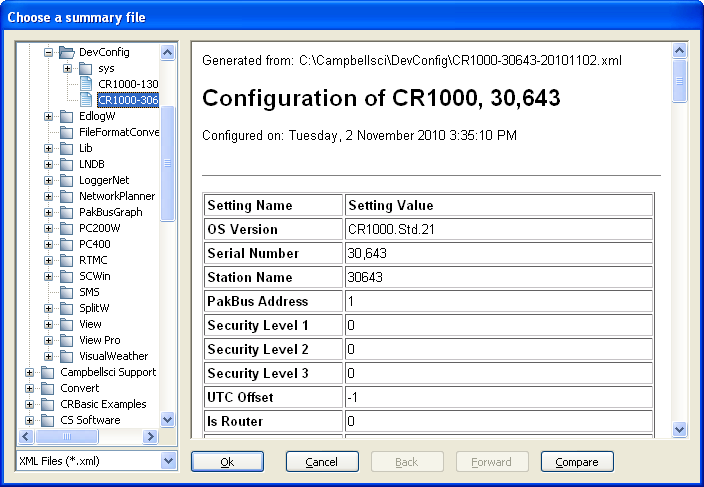
- ‘Compare’ - Compare the currently saved settings with those of a previously saved XML file
- Read Settings From File: Once you have connected to a device, you can click on the ‘Read’ button to read the configuration from an XML file previously saved. This loads to the current display all the settings which were set in the display when the XML file was saved previously (except for Serial Numbers & OS Version). You can ‘Apply’ these changes to update the data logger with the settings ‘read’ from the file.
Whether you are upgrading your Data Logger’s operating system, setting up a new network, or you’ve just read this Tech Tip and are keen to backup the settings for your Campbell Scientific network(s)/ system(s)/device(s); The ‘Save’, ‘Read ‘ and ‘Apply’ functionality of DevConfig provides a useful, timesaving aid in the documenting of equipment setup/configuration.