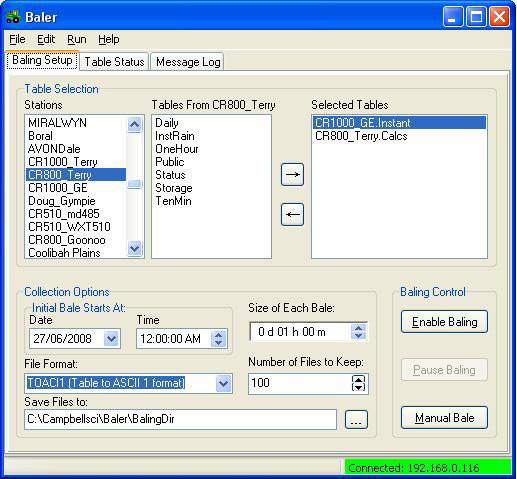
The Baler application is very similar to the DataFiler application in that it retrieves data from the Loggernet cache and stores that data in an ASCII file. The Baler however can perform this retrieval automatically and then split the data it collects over multiple files each with its own timestamp. The application is called Baler because each file created contains data from a set interval (one file per hour for example), these are called “Bales”. The Baler main window is shown right:
Baler is a stand alone product which is installed separately to Loggernet and has its own manual.
Basic Usage
The main screen contains three lists:
| Stations List: | These are the stations set up in the remote server’s Setup screen. Click on a station to view it’s data tables. |
| Tables List: | These are all the tables defined for the station selected in the stations list, click a table then click the right pointing arrow to add it to the download schedule. Tables can be added from multiple stations, they do not all have to be from the same station. |
| Selected List: | This list shows all the tables currently selected for scheduled download, to remove a table from the schedule, select the table then click the left pointing arrow. |
Below the three list controls is the collection options area. This is where the schedule is configured:
- Start by configuring a start time to set the first data to be collected.
- Set the size of each bale (how much time to store in one file).
- Set the file format, how many files to keep and where to store the files.
Once everything has been set up, press the enable baling button to start the scheduled retrievals. Baler will retrieve all the historical data and split it up into separate files, then will continue to retrieve new data until the Pause Baling button is pressed. Data will continue to be collected as soon as it is available on the server and placed in a temporary file inside the folder specified in “Save Files to:”. Once the “Bale Size” interval is up, this temporary data will be written to a new file. It is important to note that the “Bale Size” set up here is not the interval on which Baler will retrieve data from the Server. Baler will retrieve data according to the schedule set up on the Server end, and then add that data to a new file on the “Bale Size” interval.
The Manual Bale button will perform a once off retrieval without the need for a schedule. It will collect all the data up until this point and split it into multiple files as the scheduled retrievals would.
More Information
Once a schedule has been set up in the main screen, there are two tabs which give information about how the schedule is running. The first is the Table Status tab:
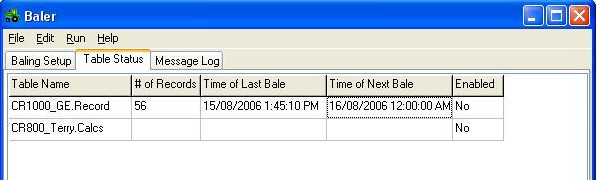
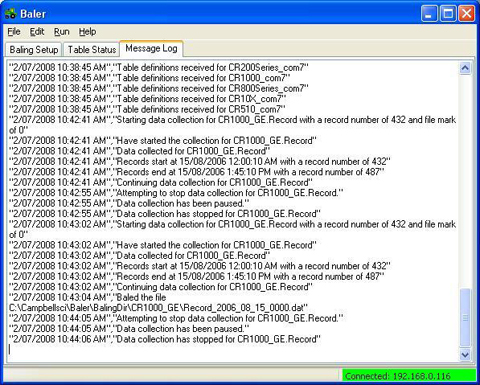
This screen shows each table that is set up for baling, the number of records collected in the last retrieval and the times of the last and next retrieval. The final column shows whether the data table has scheduled collection enabled on the server. The second information tab is the Message Log:
This window logs each operation Baler performs, the logs are written in plain English and explain the process of collecting data from the server. This window will keep the last 300 messages, there is no option to save these log messages to a file. The log can be cleared by from the Edit menu by selecting Clear Messages.
More Options
Wait for Holes
When a data collection attempt is made from a table-based datalogger, depending on LoggerNet’s data collection mode, data may not be retrieved in the order it was recorded by the datalogger. LoggerNet may request the most recent record first and then back-fill the data. This data collection method may create areas in the data cache where data is missing. The discontinuity in the collected data is referred to as a hole. Baler’s default behaviour is to bale on schedule regardless of holes. If a hole is encountered in the LoggerNet cache, the resulting bale may have one or more missing records or the records in the bale may be out of order. If records are missing from the bale, when LoggerNet eventually collects the hole, the records will be added to a subsequent bale. They will, therefore, be found in a different bale than would be expected based on filenames.
Select Edit | Wait for Holes to force Baler to wait until holes are filled before continuing to bale.
Select All Enabled Tables
Baler has the option to select all the tables enabled for scheduled collection then removing unwanted tables. This may be an easier method than searching through a long list of stations which are not being collected from to find the desired station. This can be selected from Edit | Select All Enabled Tables.
Log Messages
When this option is enabled, all Baling activity is saved to the LoggerNet server’s transaction log (Trans$.log). The file is saved in LoggerNet’s working directory, in the Logs folder (by default C:CampbellSciLoggerNetLogs). This does not save Log information to the computer LoggernetData is installed on, this forces Loggernet on the Server to include Baler information in it’s log files.
Auto Start
Baler can also be set up to begin automatic retrieval when the program is first started, this could be useful if the local computer is restarted often, or restarted remotely. In this case Baler could be added as a Start Up application in Windows, then with Auto-Start enabled, Baler will automatically start retrieving data. This option is toggled using File | Auto Start.